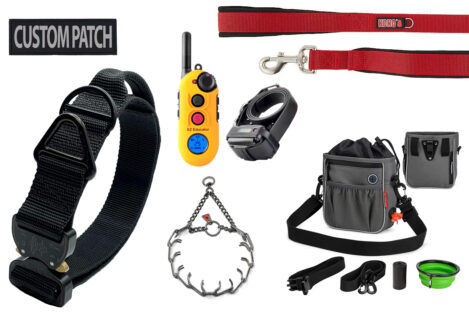
Dog Products That Are Actually Useful
How can you find good, useful dog products in a 100-billion-dollar-a-year pet industry? I’ve curated this list of dog products that I ended up liking and that I use with my dog on a daily basis.
DetailsWholesale, bargain time machines for the immediate remedy of regret and ignorance.

I know what you’re thinking: What’s this vanity site all about, Brian?
1. I no longer post anything personal on social media.
2. Posts here are usually about some totally random topic that wasn’t on the web before.
3. I self-enforce all content here with a T.H.I.N.K. philosophy: Posts should fit most of the criteria of being True, Helpful, Inspiring, Necessary and/or Kind.
4. Let me know if I can improve anything to better satisfy #3: First Name At First Name Last Name Dot Com
How can you find good, useful dog products in a 100-billion-dollar-a-year pet industry? I’ve curated this list of dog products that I ended up liking and that I use with my dog on a daily basis.
Details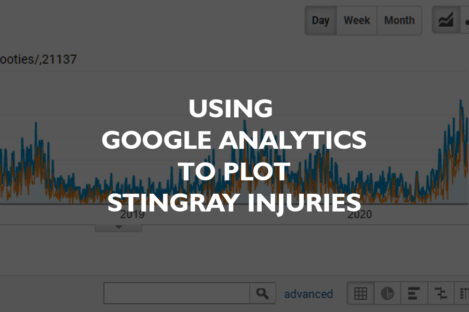
I have some popular stingray injury-related posts on this site. Assuming visitors to these posts have been stung recently, you can see peak periods for stingray injuries for any region in the world. A cool application for Google Analytics!
Details
Schema.org introduced structured data for a Question and Answer (FAQ) a while ago, and Google sometimes uses this to answer questions. It got me wondering: If you just plop some complete nonsense Q&A somewhere on a page, will it actually get picked up and used by Google as an authoritative answer? Let’s find out.
Details
An easy to read and reference table version of Discogs’ How To Grade Items instructions.
Details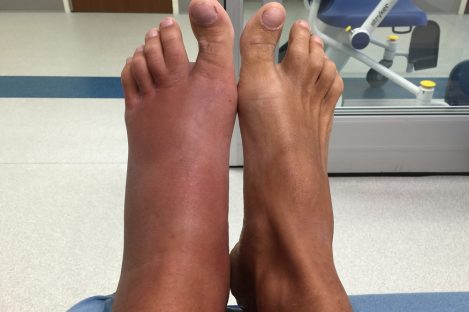
I make the argument that “shuffling your feet” to avoid stingrays is pure nonsense, and that that “stomping” your feet is a far better deterrent.
Details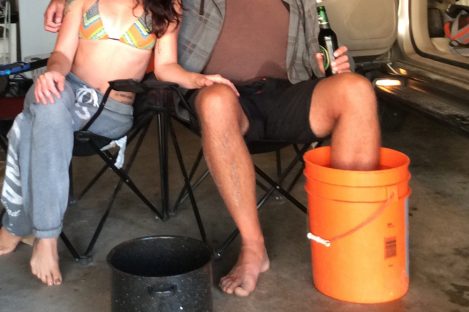
Step-by-step instructions on how to treat a stingray injury from someone that has been stung 4 separate times.
Details
Some of the most useful items for surfing are often overlooked. These items are essential to me, yet I rarely see other surfers use them.
Details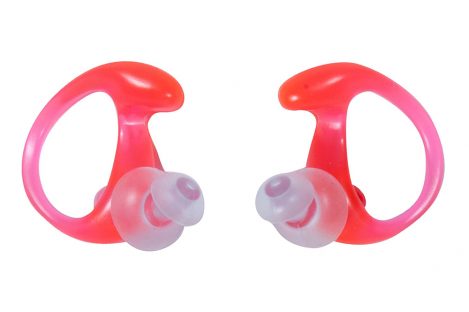
JBL Spear Guns makes a great ear plug product to help protect surfers, swimmers and divers from surfer’s ear and swimmer’s ear. However, it’s really hard to figure out what size to buy online – small, medium or large. Here’s the actual sizing diagram for the product.
Details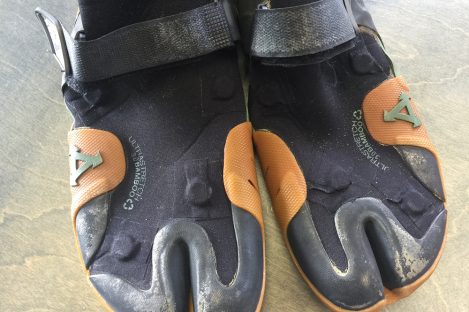
A summary of experimentation for reducing the likelihood of stingray injuries through the use of thick surf booties, puncture-resistant materials, N52 rare earth magnets, and behavioral changes.
Details
Max’s make-believe world is defined by his own childhood psychology. He’s trying to make sense of and cope with a messy world defined by adults around him.
Details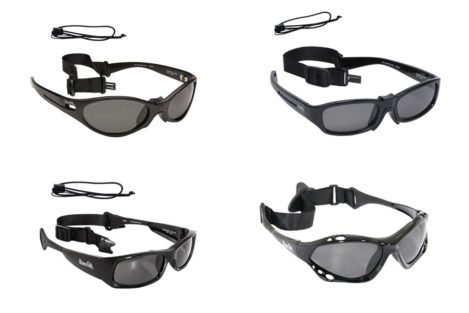
Surfers are bombarded with UV rays over the years by staring at the horizon. This post summarizes the health risks and reviews various surfing sunglasses products available to buy.
Details
A post about the ubiquitous HEY! HEY! HEY! chant in just about every hip-hop song from the 2010’s. Here’s what that is, who created it, and a list of examples.
Details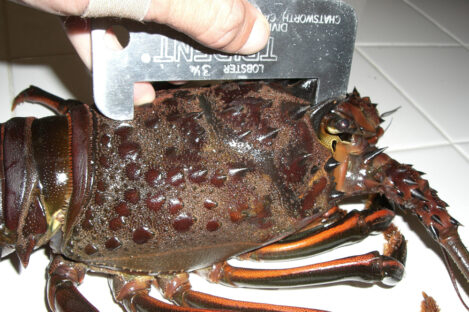
An argument for the creation of an additional upper size limit for California Spiny Lobster across both the recreational and commercial fisheries.
Details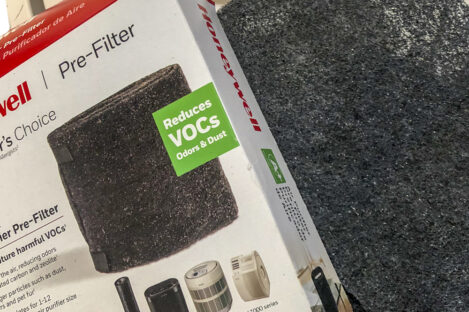
What the white spots are on the Honeywell HRF-APP1 pre-filter. Instructions on how to install the pre-filter on your air filter, and the cheapest place to buy these filters.
Details
If the little plastic nut on your Bodum french press has stripped threads, here’s how to fix it.
Details
Address and contact details for 2 urgent care facilities in Encinitas, CA. Trying to find a phone number for the urgent care facility in Encinitas… the one with the big URGENT CARE sign on it? Use Scripps instead.
Details